
How to run DLSS 5 on any Renpy game including my own
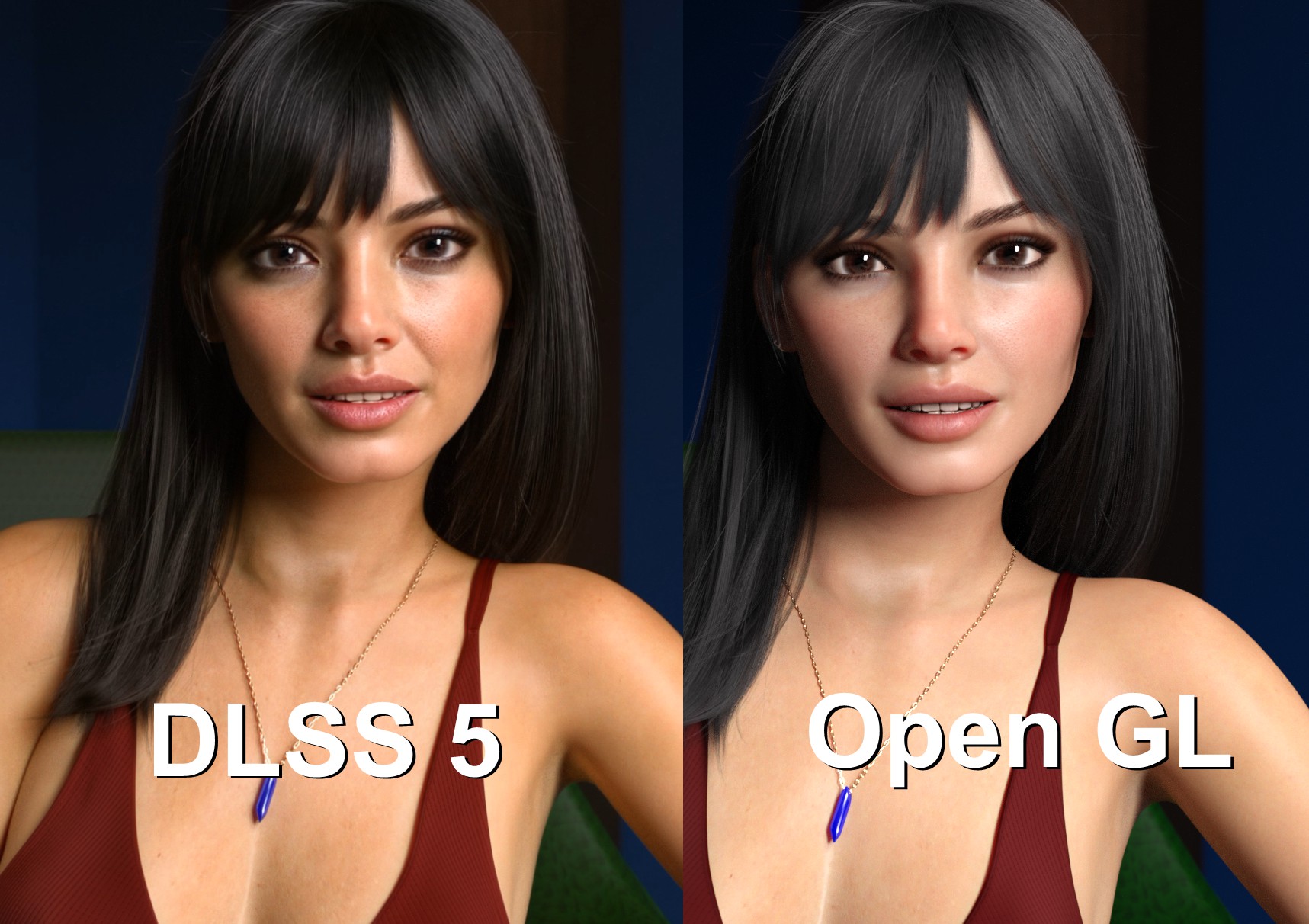
DLSS 5 got accidentally released in the latest NBA video game, and creative hackers have been using the drivers to not only use them in RTX5000 series which they were built for, but RTX 40, 30 and 20, and even AMD cards, as well as older games that were not made for DLSS, let alone DLSS 5.
How? Basically, they turned the DLSS 5 driver into a ReShade add-on, and that’s hilariously funny.
On friday, I posted on my Patreon what my games looks like in DLSS 5, but the change only lasted a second, so I did that post with screen captures. Since then I found a way to make it last more than a second, permanently even. Hopefully it works for you too if you want to try it.
DLSS 5 using ReShade is experimental at this point, and the results may look strange to ugly if you use it. This is what finally worked for me.
Step 1: Get DLSS 5 Swapper https://github.com/rakanki911/DLSS5-Swapper If you haven’t been to github before, follow the link, look on the right side for the word “latest” in green. Click there and scroll to the bottom of the version notes page.
Step 2: Download and install DLSS5-Swapper-Setup-2.2.4.exe The number between Setup- and .exe might have changed, they keep updating it, so get the latest version. It works with ANY modern gaming graphics card, including AMD. It emulates DLSS if your game doesn’t have it.
As for what games it can add DLSS 5 to, it has problems with “copy protection” or “cheat protection” games, I couldn’t get it working on a Ubisoft game I wanted to try because of this.
Step 3: Run DLSS 5 Swapper. This program is designed to apply DLSS 5 to any game you have on your PC. For this article, I’m applying it to the Steam version of Ariane in Paradise. The program searches your steam library.
In the executable bar, it will find the wrong program, change it to ArianeInParadise.exe (or whatever .exe you launch your game with). Under Rendering API say “DirectX 11”. This is the mistake I made before because the default for Renpy is usually Open GL, but we will fix that soon.
Rendering backend should say ReShade (default) and installation route should read DLSS5-feeder, then click the big green “Install DLSS 5” button on the bottom.
Note: this is the process for any game you want to try. You have to repeat this process for every game.
Step 4: Launch the game. It will default to Open GL mode which is wrong. With the game open, press Shift+G to enter a hidden Renpy graphics menu. Select “Force Angle2 Renderer” if you see it, or “Force Angle Renderer” if the game has been out a while (see https://www.renpy.org/doc/html/display_problems.html for more info). Quit the game and restart it.
Step 5: You should get a ReShade message at the top when you relaunch. Press the “Home” key to open up Reshade. Skip the tutorial. You should see LUMENITE Kernel at the top of the list and DLSS 5 Feed right below in that exact order. If they are not there, click “Active to TOP”. Now click the RENODX-DLSSNR tab at the very top, and make sure “Enable DLSS Neural Rendering” is checked, and then in the info screen at the bottom, it should say “ACTIVE – NR INJECTED”. If it says something else try exiting the game and restart.
Press “Home” again to get out of ReShade.
You should now be able to play the game with DLSS5 graphics. Note: THIS IS EXPERIMENTAL AND MAY LOOK LIKE TRASH. One known issue with Renpy is that text will look bad, but not bad enough to look unreadable. Don’t worry you can always turn it off, or use the swapper program to “restore originals”.
I experimented with other games. DAZ games look the best. I tried Hopepunk City which uses older Poser graphics, and sometimes it looks good, and sometimes it looks pretty bad. So your mileage may vary.


Tried using it for Eternum FPS drops to 14 any solution? my card is rtx 3060 ti
Generally for visual novels made from still images the FPS doesn’t matter. Eternum is an HS2 game and DLSS5 made it look bad ( I know I tried it on Eternum too).
Truth is, I’ve already removed it from most of my games I was trying it out on. FPS was one reason, inconsistency of results was another.
It was a fun experiment, but it’s still AI slop.